
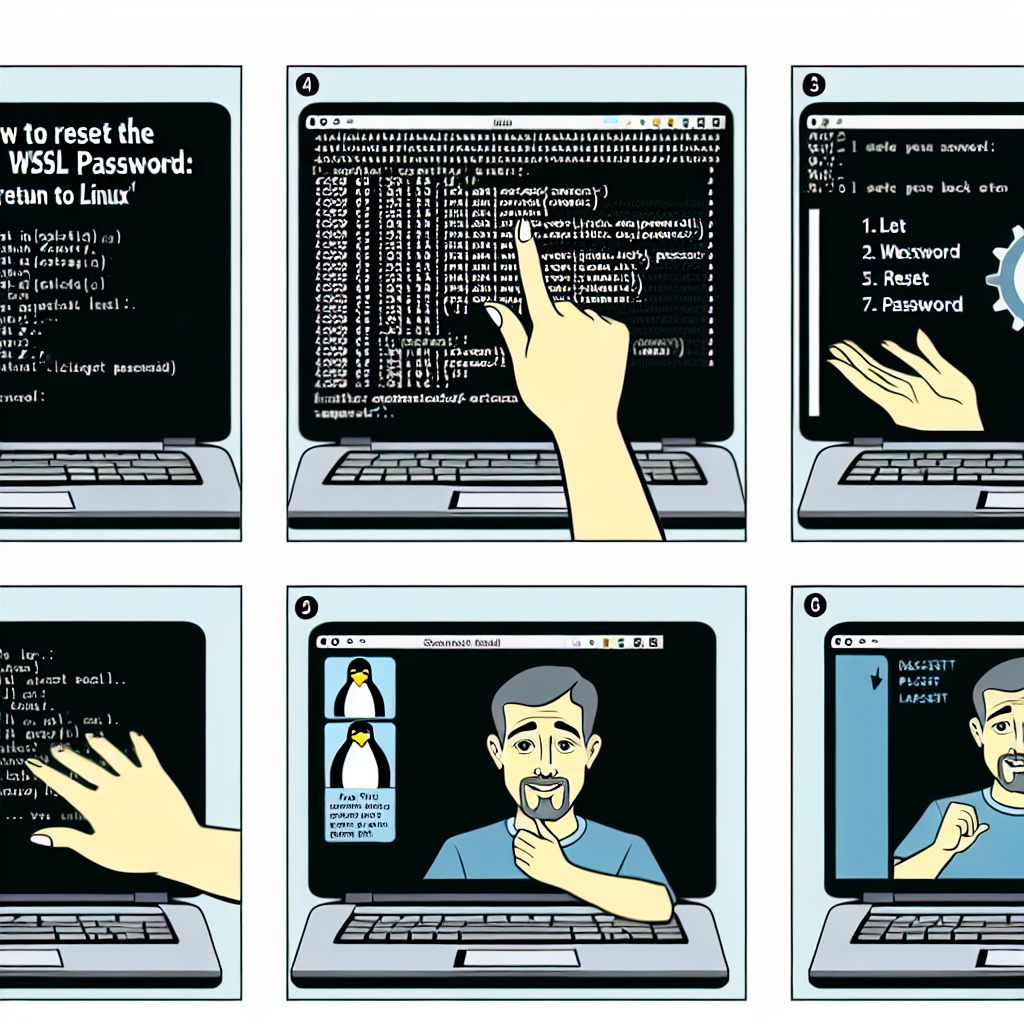
Introduction If you forgot your Windows Subsystem for Linux WSL password, don't worry, this is a common and easy-to-solve problem. In this practical guide in Spanish, I explain step by step how to regain access without losing data or configurations.
What is WSL and why the password matters WSL allows you to run a Linux environment directly on Windows without a virtual machine. When installing a distribution, you create a user and a password that are used for administrative tasks sudo, protect the environment, access system files, and install software.
When you will need this guide This guide is useful if you don't remember the initial password, you haven't used WSL for a while, someone else configured WSL on your computer, you receive authentication errors with sudo, or you want to change the password for security reasons.
Prerequisites Make sure you have Windows 10 version 1903 or higher, or Windows 11, WSL installed with at least one distribution, administrator access on Windows, and basic familiarity with the command line.
Step 1: Open PowerShell or Command Prompt as administrator You need administrator privileges to enter WSL as root. Use the Start menu, search for PowerShell or Command Prompt, and run as administrator, or press Win + X and select Terminal Admin or Windows PowerShell Admin. Confirm when the User Account Control appears and verify that the window shows Administrator in the title.
Step 2: Identify the distribution List the installed distributions with the command wsl -l -v. Note the exact name, including the capitalization, of the distribution you want to use. The asterisk indicates the default distribution.
Step 3: Access as root Enter as root by replacing DistributionName with the name you noted using the command wsl -d DistributionName -u root. For example, wsl -d Ubuntu -u root. When you do this, you will see a prompt that starts with root, indicating that you are inside the Linux environment with administrative privileges.
Step 4: Identify your username If you don't remember your user, list the home directories with ls /home and locate the directory that matches your usual user.
Step 5: Reset the password Run passwd username, for example passwd juan. Enter the new password and confirm it when prompted; you will not see characters while typing for security. You should see the message passwd password updated successfully, indicating that the password was updated correctly.
Step 6: Exit and verify Exit the root session with exit. Then restart WSL with wsl --shutdown, wait a few seconds, and then start WSL normally with wsl. Test the new password using a sudo command, for example sudo apt update, and enter the password when prompted.
Common troubleshooting If you see the error The system cannot find the file specified, verify that WSL is installed correctly and that the distribution name is spelled exactly; use wsl --list --verbose. If you cannot open PowerShell as administrator, check your permissions or ask the system administrator for help. If WSL does not start after wsl --shutdown, wait 10-15 seconds, try wsl --distribution DistributionName, or restart the computer. If passwd returns Authentication token manipulation error, make sure you are really root, try again, and if it persists, restart WSL and repeat the process.
Good password management practices Use a reliable password manager like Bitwarden, 1Password, or the Windows tool to store your password, create memorable and secure passphrases, avoid using the same password as your Windows account, document which distributions you have and the associated users, and use WSL regularly so you don't forget the credentials.
Security considerations This method requires physical access to the computer and administrator privileges, so it offers a reasonable security barrier. The reset does not delete files or configurations, and remember that operating as root involves risks because it has full control of the system.
When to ask for help Contact an administrator or an experienced developer if you don't have administrator access on Windows, WSL was configured by your company's IT, you work on a managed computer, or you encounter errors not covered in this guide and need to recover important data.
About Q2BSTUDIO At Q2BSTUDIO, we are a custom software and application development company, specialists in artificial intelligence and cybersecurity. We offer cloud services aws and azure, business intelligence services, custom software solutions, and custom applications, as well as AI for businesses, AI agents, and solutions with power bi. If you need support for WSL environments, integrations with development pipelines, or advice on security and cloud deployment, our team can help you.
Conclusion Forgetting your WSL password is common, and recovering it is simple if you have administrator access on Windows. The key steps are opening a terminal with administrator privileges, identifying the distribution, accessing as root, changing the password, and verifying it works. Save the new password securely and consider the good practices mentioned to avoid future problems.
Invitation If you are interested in receiving more practical guides on development, managing Linux environments on Windows, artificial intelligence, cybersecurity, cloud services aws and azure, business intelligence services, AI agents, or power bi, follow us at Q2BSTUDIO and contact us for personalized custom software and application solutions.