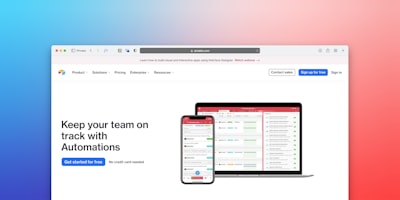

Mastering keyboard shortcuts is one of the most cost-effective skills for any professional who works with computers. Every second saved by avoiding the mouse multiplies across hundreds of daily actions, accumulating hours of productivity that translate into entire days per year. This article compiles 100 essential shortcuts, organized by category, that will help you work more fluidly and reduce physical fatigue. At Q2BSTUDIO, as a software development and technology company, we know that operational efficiency is key to business success. That is why, in addition to native shortcuts, we recommend integrating solutions like process automation to further boost your performance.
Windows shortcuts that change your daily routineThe Windows operating system includes dozens of combinations that become intuitive once learned. For example, Win + V opens the clipboard history, allowing you to paste previously copied items. Win + Shift + S launches the snipping tool to quickly capture screenshots. Win + . (period) opens the emoji and symbol panel, useful for quick communications. Ctrl + Shift + Esc opens Task Manager directly, bypassing the security menu. Win + D shows and hides the desktop instantly. Win + L locks the session, essential for security in shared environments. Alt + Tab switches between open windows, while Win + Tab offers a 3D view of virtual desktops. Win + Arrow keys snap windows to screen edges, facilitating multitasking organization. Win + E opens File Explorer, and Win + R launches the Run box. Ctrl + Shift + N creates a new folder instantly. F2 renames the selected file. F5 refreshes the current view. Alt + F4 closes the active window. Win + I opens Settings, and Win + A opens Action Center. Win + P projects the screen to a second monitor. Win + S activates search. Win + X opens the advanced user menu. Ctrl + Alt + Del accesses security options. Win + T cycles through taskbar icons. Win + B focuses the notification area. Win + M minimizes all windows, and Win + Shift + M restores them.
Ultra-fast browser navigationModern web browsers share many shortcuts that multiply productivity. Ctrl + T opens a new tab, Ctrl + W closes it, and Ctrl + Shift + T reopens the last closed tab. Ctrl + Tab advances between tabs; Ctrl + Shift + Tab goes backward. Ctrl + L focuses the address bar. Ctrl + D adds a bookmark. Ctrl + H opens history, Ctrl + J opens downloads. F5 reloads the page, and Ctrl + F5 forces a full reload without cache. F12 opens Developer Tools, essential for inspecting code and debugging. Ctrl + Shift + I also opens DevTools. Ctrl + Shift + J opens the JavaScript console. Ctrl + U shows the page source. Ctrl + P prints the current page. Ctrl + Shift + P opens print preview. Ctrl + Plus/Ctrl + Minus zooms in/out; Ctrl + 0 resets to 100%. Alt + Left arrow goes back, Alt + Right arrow goes forward. Ctrl + Shift + B toggles the bookmarks bar. Ctrl + Shift + O opens the bookmarks manager. Ctrl + Shift + Del clears browsing data. Ctrl + Shift + N (in some browsers) opens an incognito window. For quick searches, Ctrl + K focuses the search bar from any page.
Text editing with surgical precisionIn word processors and code editors, navigation and selection shortcuts are vital. Ctrl + Left/Right arrow moves the cursor word by word. Ctrl + Up/Down arrow jumps between paragraphs. Ctrl + Home/End goes to the beginning or end of the document. Home/End on the current line. Shift + any arrow selects characters; Ctrl + Shift + arrow selects words or paragraphs. Ctrl + A selects all. Ctrl + C/V/X for copy, paste, and cut. Ctrl + Z undoes, Ctrl + Y redoes. Ctrl + Backspace deletes the previous word. Ctrl + Delete deletes the next word. Ctrl + Shift + V pastes without formatting, avoiding unwanted styles. Ctrl + B/I/U for bold, italic, and underline. Ctrl + L/E/R aligns left, center, or right. Ctrl + K inserts a hyperlink. Ctrl + 1/2/3 applies heading styles in some editors. Ctrl + Shift + L toggles bullet points. F7 checks spelling. Shift + F7 opens the thesaurus. Especially useful in software development, the combination Ctrl + Shift + F searches the entire project. In collaborative environments, these shortcuts are enhanced when integrated with artificial intelligence tools that predict the next move or auto-complete code.
Shortcuts for creative and office applicationsIn suites like Microsoft Office, Adobe Creative Cloud, or Google Workspace there are hundreds of specific shortcuts. In Excel, Ctrl + Shift + $ applies currency format, Ctrl + Shift + % percentage format. F2 edits the active cell, F4 repeats the last action. Ctrl + Space selects the column, Shift + Space the row. Ctrl + Shift + + inserts cells, Ctrl + - deletes them. In Word, Ctrl + Enter inserts a page break. Ctrl + Shift + Enter inserts a section break. Ctrl + Alt + M adds a comment. In PowerPoint, F5 starts the presentation from the beginning, Shift + F5 from the current slide. Ctrl + D duplicates the selected object. In Photoshop, Ctrl + T free transforms, Ctrl + J duplicates the layer. These shortcuts, combined with automated workflows via custom solutions, drastically reduce production times.
How to incorporate shortcuts into your routineLearning 100 shortcuts at once is overwhelming. It is advisable to start with the most frequent ones: copy, paste, undo, switch windows, and close tabs. Practice for a week until they become automatic. Then add shortcuts specific to your main tool. For example, if you work with Power BI, memorize combinations like Ctrl + S to save, Ctrl + Shift + G to group visuals. At Q2BSTUDIO we design Business Intelligence solutions that leverage these shortcuts to speed up data analysis. Similarly, in cybersecurity, shortcuts like Win + L lock the computer instantly, protecting sensitive information. Companies that adopt a productivity culture not only teach shortcuts but also integrate tools like internal chats with AI agents that suggest commands or automate repetitive tasks.
Productivity beyond the keyboard: the role of technologyShortcuts are just one piece of the efficiency puzzle. Modern organizations invest in custom applications that unify processes and reduce friction. For example, a project management system can include custom shortcuts that execute complex actions with a single combination. Additionally, cloud computing with AWS or Azure allows these shortcuts to work remotely and securely, without depending on a single device. At Q2BSTUDIO we offer cloud AWS/Azure services to ensure your infrastructure is optimized for agile work. We also implement AI agents that learn from your patterns and suggest contextual shortcuts, elevating productivity to a new level.
In summary, mastering 100 keyboard shortcuts can save you hours each week, but the real leap in efficiency comes from combining these techniques with advanced technological tools. Evaluate your current workflow, identify repetitive actions, and look for both native shortcuts and software solutions that automate them. At Q2BSTUDIO we are committed to helping you optimize every aspect of your business, from cybersecurity to artificial intelligence, through custom development. Start typing faster and working smarter today.